Trailerpark QT 1.1.8
For Mac OS X, Mac OS Classic and Windows
   |
The Quick Intro
Register and get the goods
The Manual
Fixed Size Options
Directory Options
Keyboard / Mouse Shortcuts
X vs. Classic (and now Windows): what's the diff?
Windows Version Differences
The Flaws
The Future
The Fine Print
The Quick Intro
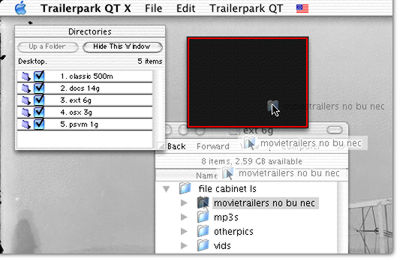 Load a folder of QuickTime movies either by drag-and-drop, or navigate your way through the "Directories" window. |
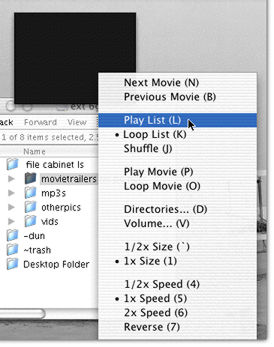 Clicking the moviescreen gives you access to all of Trailerpark QT's options. |
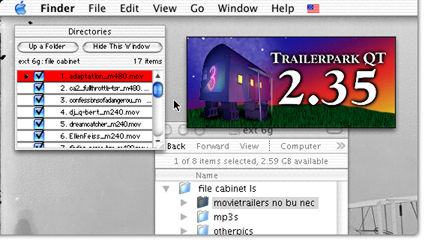 Though the Finder is active here, the desktop folders remain behind Trailerpark QT's windows. |
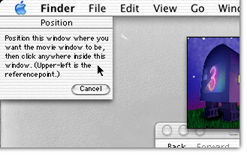 How do you move a movie with no borders? Use the "Position" window. |
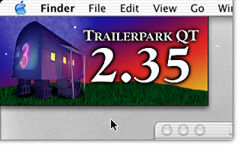 The moviescreen will always adjust to stay completely on your screen. |
(Actually, right underneath the Applemenu isn't the best place for a floating window - the menubar just provided a good frame of reference for these examples. My favorite spot is the lower-right corner of the screen.)
Go ahead and explore the other options; they're pretty self-explanitory - but be sure to take a quick read of the manual below, as there are a few details you might want to know. Read on...
Return to Top
Register and get the goods!
So, register for a measly $12.50 - get a bigger view (including full screen), save the strain on your eyeballs, and have all the listplaying convenience of Trailerpark QT, too. Your serial number will work with both the Classic and X versions.
The five-second startup delay you see the first time starting Trailerpark QT now only appears that one time. Enjoy!
The opening screen of "Trailerpark QT 2.35" will appear every time you start an unregistered version of Trailerpark QT. However, if you'd like to remove this extra startup delay, simply remove the file "trailer235.tif" from the application folder.
Return to Top
The Manual:
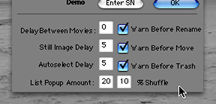 Select additional options in the "About Trailerpark QT" window. |
NEW IN 1.1.7: SHOW TIPS displays the scrolling line of helpful hints at the top of the moviescreen and the "Directories" window. Uncheck this to remove the line once you've acclimated to the program.
AUTOSELECT DELAY, after this number of seconds, will reselect the item currently playing in the "Directories" window. This is useful when you scroll down a long list to search for another selection, and don't wish to hunt down the currently playing file again. Crank this up if it's interferring with your list browsing.
WARN BEFORE RENAME / MOVE / TRASH all apply to their relevant "Directories" window functions (see Directory Options for more).
 Move / trash warnings will NOT appear if you're organizing files via drag-and-drop from the "Directories" window (see "Directory Options" for more info).
LIST POPUP AMOUNT sets how many files you want to appear in the playlist popup menu (via control-click; look under mouseclick options for more info). % SHUFFLE sets how much of the playlist to shuffle during each pass. The shuffling focal point is in the middle of the playlist, where you'd (hopefully) least notice it. Set the percentage to 0 for no reshuffle (the same pattern will be repeated, over and over) - or crank it all the way up to 100 for maximum shuffling power.
Now, let's look at the moviescreen menu options.
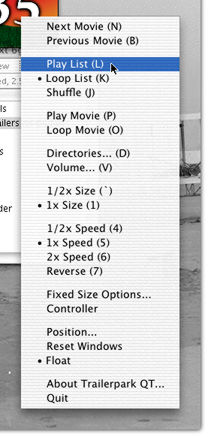 Clicking the moviescreen gives you access to all of Trailerpark QT's options. |
LOOP LIST Upon reaching the end of the directory, Trailerpark QT will restart at the beginning of the list.
SHUFFLE Put a little randomness in your life. Requires at least two enabled and usuable files to shuffle properly. ("Loop List", whether enabled or not, is assumed during shuffleplay.)
PLAY MOVIE If there are movies available in the current directory and you haven't selected a clip yet, then the first movie on the list will load and play.
LOOP MOVIE Supercedes "Play List" above - you may be viewing along through a list, loop a favorite clip for a few watches, then select "Loop Movie" again (which now sets to -not- loop the movie, natch) to continue the list.
ENABLE / DISABLE ITEM Same as checking / unchecking the currently playing file in the "Directories" window. Use the key shortcut ("E") in combination with "N" and "B" (Next / Previous Movie) to quickly review and prune your collection.
SPEED OPTIONS A basic bit of control over playspeed. Convenient; useful; amusing.
REVERSE This will be applied over the speedrate selected above.
DIRECTORIES... Toggles the display of the "Directories" window; from there, you can navigate your volumes and folders. See the Directory Options section below for more about this all-important window.
VOLUME... Toggles the display of the "Volume" window. You may uncheck "Mute During Altered Speed" to amuse yourself while watching movieclips at 2x speed. ("Mute During Altered Speed" is ignored while in audio-only mode, so that you may have a point of reference while finding a particular point in the file.)
"Main Volume" affects the overall audio output of Trailerpark QT. Volume levels may vary from file to file, so you may want to finetune the volume of individual files by adjusting the "File Volume" amount. You can adjust "File Volume" to multiple files selected in the "Directories" window. Your custom "File Volume" settings are saved with your playlists.
CONTROLLER Displays the normal QuickTime movie controller. Audio-only files automatically display the controller. Set the Fixed Size to 80x60 for a small, convenient, floating MP3 player. Look under mouseclick options for shift-click tips.
POSITION... Use the "Position" window to set the location of the moviescreen. See The Quick Intro for a tutorial. Multiple-monitors are supported; place the moviescreen window on whichever screen you like.
RESET WINDOWS If you switch resolution or monitor layout while Trailerpark QT is active, the moviescreen and other windows may get trapped offscreen. This menu selection will bring them back home.
FLOAT Trailerpark QT's default float mode lets its windows appear over any application, even if the Trailerpark QT application is hidden in the background. You can "unfloat" Trailerpark QT, and all its windows will behave like normal application windows, dropping to the background (when the app itself is in the background, of course).
It is necessary to unfloat Trailerpark QT to use the "Full Screen" function. If the application is currently floating, it will automatically unfloat when you select "Full Screen." You will then either need to bring the application forward to view, or you can leave it in the background as a full-screen movie backdrop."Full Screen," along with "2x Size" and "Original Movie Size," are available as options when Trailerpark QT is registered.
FIXED MOVIE SIZE / ORIGINAL MOVIE SIZE: With "Original Size," at 1x, you will see the clip at - uh - its original size and ratio. However, while playing movies from different sources, this "original" size is bound to change a lot, making the viewing experience (not to mention your working screen environment) a tad unpredictable.
"Fixed Size" takes care of this dilemma, by setting - as it says - the width and height of the moviescreen to a fixed size, changeable via "Fixed Size Options" below.
Return to Top
Fixed Size Options:
For special cases though, Trailerpark QT provides a simple yet powerful combination of options to control the view. Read "Fixed / Original Movie Size" above first for a primer.
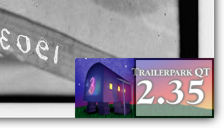 Widescreen, appropriately, expands the width of the screen, in ratio to the set height. 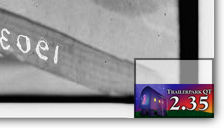 Letterbox, in comparison, preserves the width setting, and the screen grows shorter or taller. |
Choose a size from the popup menu, or enter any size you like. And, if you wish, change the "Preserve Ratio" options.
While in the default "Float" mode, typing into the size option or the serial number fields may "fall through" into your current application, if Trailerpark QT is currently in the background. (Trailerpark QT's buttons and checkboxes work just fine from the background though.) Make Trailerpark QT frontmost to enter these numbers.Occassionally, you may have clips that look stretched and unnatural (usually from misset digital cameras). If you know all your clips are - or should be - standard tv ratio, then toggle off PRESERVE RATIO and set the exact width and height of the movie until it looks right (standard QuickTime / television ratios are provided via the popup menu).
Normally, though, you'll want "Preserve Ratio" on - television-ratio clips will display normally, yet widescreen-format clips (like most movie trailers) will be presented in your choice of two presentation modes:
WIDESCREEN is the default, which preserves the HEIGHT of the movie (according to the size entered in the settings), letting the width of the movie expand and shrink from left to right. Kinda like when the curtains expand at the theater.
LETTERBOX preserves the WIDTH of the window, much like watching letterboxed videos on a television. This shrinks or expands the height of the movie to match ratio. Originally conceived, I was going to center the movie in the window with television-like blackbars, but of course, why bother wasting the screenspace?
Simply put, letterbox may not get in your way as much as widescreen, depending on your workspace. If you would find it more convenient, switch to letterbox. Both options display exactly the same in fullscreen mode.
Speaking of the letterbox blackbars, you will occassionally find that some movie trailers and other clips are "pre-matted" - they have these blackbars actually encoded into the clip itself. There is no automatic setting available to remove these prematted bars.
Return to Top
Directory options:
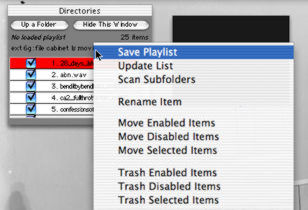 Click on the path / listcount info (below the "Up a Folder" and "Hide This Window" buttons), and you'll see this popup menu. |
With "Play List" active, clicking once on another file will que it to play next. As explained under "About Trailerpark QT / Preferences", Autoselect Delay defines how many seconds it will wait before reselecting the currently playing file, so that you can go find the file you want in a long list, then not have to hunt down the currently playing selection again. Under certain convenient circumstances, like having a range of files selected, or while renaming a file, autoselect is automatically disabled.
Once you have clicked within the listings, you can type the first letter of a desired file to quickly scroll to that section of the list - useful in particularly long lists. Once "Autoselect Delay" has occured, this functionality is released to regain normal keyboard-shortcut access.
Double-clicking upon a file in the "Directories" window will load and play that particular file immediately. Double-clicking an already-playing file restarts it from the beginning.
Filelist items are draggable - reorder the list to your liking. You may shift- and command-select a range of files, and option-clicking a checkbox toggles all the selected items. (Checked files are "Enabled"; unchecked files are "Disabled". Only enabled files will play during "Play List".)
You can reorganize your files via drag-and-drop direct from the "Directories" window to Finder folders and Trash. Select a range of files, and simply drag them to a folder, the Desktop, or the Trash. Option-dragging will create duplicates of the selected files at the proper destination, leaving the original files in place. (Sorry; drag-and-drop not available in the Windows version. Use the 'Move' functions discussed below, instead.)
If you're moving files from one spot in a subscanned directory to another spot within the same directory chain, the files will move, but the listing will not automatically update to show their new location (an "Update" everytime would take too much time for a long listing). You'll want to occassionally "Update List" to refresh the "Directories" list. Also, as noted above under "Preferences", you will not receive any of Trailerpark QT's selected move / trash warnings for drag-and-drop operations.Click upon the playlist / path info (below the "Up a Folder" and "Hide This Window" buttons), and you'll see a popup menu featuring "Save Playlist", "Update List," "Scan Subfolders," "Rename Item", and "Move / Trash Items" options. Use this menu to collect and manage your movie inventory and playlists.
SAVE PLAYLIST will do just so, saving a file that stores the current list with individual file volume settings and enabled / disabled states as a file called "-Trailerpark QT Playlist" in your current directory (if you have subscanned a directory, the playlist file will appear where you began your subscan). Feel free to rename or move the playlist file whereever you please.
The screen layout and sizes of the moviescreen and "Directories" window, along with many other applicable preferences, are saved in each individual playlist file. This allows you to create and save your ideal screenspace for movie-watching, MP3-listening, etc etc.
To open your saved playlists, drag them to a Trailerpark QT window, or just double-click the playlist in the Finder or in the "Directories" list. (Or, in OS X, dock your playlists for one-click access... or, in Classic, put your playlists in your "Apple Menu Items" folder.)
When loaded, the playlist name will be displayed in the "Directories" window. If you switch folders or playlists or quit with a loaded playlist, any changes to the list are automatically saved.
Trailerpark QT automatically saves its last location upon quit, in case you forget to save a playlist wherever you left off. If you quit Trailerpark QT with a loaded playlist, then reopen the application directly, instead of via the playlist, you'll be presented with a "Directories" listing that only -looks- like your last open playlist. Don't be fooled - check for the playlist name in the "Directories" window.UPDATE LIST The target folder will be rescanned, and new or missing files will be added or removed to the list. With a long / subscanned list, this may cause a brief delay.
SCAN SUBFOLDERS will start with the current displayed directory, and scan through all the enclosed folders (and any folders within'em, ad infinit'em) to display a large list. If this list is quite large, you may need to adjust the memory allocation of Trailerpark QT to accomodate.
RENAME ITEM, as it says, allows you to change the name of a single file or folder directly from the "Directories" window... handy for on-the-fly renaming of your new playlists, "moved" folders, and those oddly-named downloaded movies.
MOVE ENABLED / DISABLED / SELECTED ITEMS will create a new folder called "-Trailerpark QT Moved Files" in your currently displayed directory (if there is not one already), and move your selected files to it. If you have subscanned a directory, this folder will appear where you began your subscan. TRASH ENABLED / DISABLED / SELECTED ITEMS works similarly, but of course, moves the selections to the Trash. (Sorry; 'Trash' functions not available in the Windows version. Use the 'Move' functions to move files to a new folder, then delete that folder.)
Trailerpark QT will not replace an existing file with the same name. If a file does not move as you had expected, check the destination folder for a duplicate filename, or simply rename the reluctant file, then try moving it.
Note that, as a safety measure, moving or trashing enabled / disabled items will automatically exclude any folders within your list, whether or not the action you choose would apply to their current state. If you wish to move or trash folders, use "Move / Trash Selected Items".
"Move / Trash / Rename" can - and will - apply to nearly any files or folders you select, including any essential system files that you may have displayed in your list, so use an equal dose of caution while using these functions.Return to Top
Keyboard / mouse shortcuts:
X / Windows users: The key shortcuts work for OS X and Windows users while Trailerpark QT is frontmost, of course, but not while the application is in the background. The following digression into "quick-click" accessibility while Trailerpark is in the background applies to Classic users only; OS X and Windows readers may want to skip down a few paragraphs to the mouseclicks options. Windows users will need to select a menu option before shortcuts are available to the user; this is a restriction in the MDI interface.OS X / Windows maintains a cleaner separation between active applications, so X / Win users will always need to use the moviescreen menu to access options while the app is in background.
Classic users only: Trailerpark QT's key commands normally shouldn't interfere with your other programs; however, if you use the moviescreen menu to select an option, then return to your other application, Trailerpark QT may inadvertently intercept one of its key commands. (Easy test: try hitting "D" or "V" and see if the "Directories" or "Volume" windows appear.) Just mouseclick within your chosen application to prevent this behavior.
However, there'll be plenty of times while in one application, you'd like quick access to the Trailerpark QT shortcuts to change directories or volume.
Just click once in the moviescreen for the menu (or shift-click on the controller bar's Play / Pause button if necessary - more on this below), then release it without selecting any items, then try the key shortcut - it should work under most circumstances. Then click once again within your active application to release control of Trailerpark QT.
Here's a few special mouseclicks you might find useful. These clicks apply (in slightly varying combinations) equally to the moviescreen, the movie controllerbar's play / pause button, and the "Directories" window (in the path / listcount info area).
Command-click quits Trailerpark QT. (Sorry; not available in the Windows version.)
Shift-click Prevents the appearance of the moviescreen menu; restores normal QuickTime movie response. Important when you want to pan around a QuickTime VR panorama, or rotate a QTVR object.
If you shift-click upon a movie controller's play / pause button, you will instead receive the moviescreen menu - good for when you're in audio-only mode.
Option-click gives you quick access to the volume controls.
Control-click gives you a popup menu of your playlist, along with additional access to "Up a Folder", "Update List" and "Scan Subfolders". You may use this menu to select the file you want to play next, or navigate up and down directories.
Return to Top
X vs. Classic (and now Windows): what's the diff?
As is, the background-key access is taking advantage of buggy interaction with the Classic environment, so this functionality may change for everyone in the future, perhaps via a set universal shortcut.
The only other true difference is when you click for the moviescreen menu - in the Classic environment, the movie will pause while the menu displays, then continue playing when you are finished with the menu. (The normal menubar - ya know, the one at the top of the screen - is not currently flaggable in the same way, so use the moviescreen menu for the most convenient Classic experience.)
The reason for this is, the Classic environment cannot continue to show the movie playing underneath an open menu, unlike OS X. This menupause is removed from the X build, so that you can continue enjoying the movie while you make your menu selection. Feel free to use the X version under Classic, if you wish - it's a Carbon app. However, you'll miss part of the movie every time you use the menu!
I suppose this is actually a feable attempt to help "contain" the playback experience, as most other Classic activity (launching/quitting other apps, etc.) will create gaps in playback. Still, it's a feature I like, since I'm still primarily a Classic user. If there's feedback that a toggle for this behavior would be appreciated on the Classic side (or to allow "autopause" on the X side), I can do it.
OS X users shouldn't suffer this activity bog-down nearly as much (at least, not as much as I see it on a Bronze running X:). Trailerpark QT has been tested on varying combinations of Mac OS 8.6, 9.1, 9.2.2, and OS X on a PPC 7600 / 120, Powerbook G3/500 Bronze, BW G3 550, and the occassional lampshade I-Mac.
For now, I've set the Windows version to behave like the Classic version, with the menupause inserted. Actually, Windows can run the movie in the background, like the X version, but this needs further development to handle the particulars of the environment. More to come... Trailerpark QT for Windows tested primarily via Virtual PC (yup, it's slow) and a host of Windows-based friends.
Return to Top
Windows Version Differences
The floating moviescreen displays the windowbar; to ideally match the Macintosh version, this windowbar should not appear. Resist the temptation to simply move the screen by the windowbar - use the 'Position' menu selection to save its place correctly.
Drag-and-drop functions aren't available, nor are the 'Trash Items' methods (use the 'Move Items' selection to reorganize your collection). Command-click quits aren't available.
Keyboard shortcuts are available only when the Windows user selects a menu item.
Return to Top
The Flaws:
- PC: The floating moviescreen displays the windowbar; to ideally match the Macintosh version, this windowbar should not appear. (Resist the temptation to simply move the screen by the windowbar - use the 'Position' menu selection to save its place correctly.)
- PC: Drag-and-drop functions aren't available, nor are the 'Trash Items' methods (use the 'Move Items' selection to reorganize your collection).
- PC: Command-click quits aren't available.
- PC: Keyboard shortcuts are available only when the Windows user selects a menu item.
- Trailerpark QT does not currently scan for changes in resolution / monitor layout; doing so may trap the application's windows offscreen. (Use "Reset Windows" to bring them to your main monitor.)
- Attempting to move or trash a currently playing item may result in an error. (Disable play, or set play to another item first.)
- Menubar display during fullscreen mode is flickery in Classic, but functions properly. Will continue to refine its behavior.
- When hit, current screensizemax checks (non-fullscreen modes) tend to UNpreserve ratio at very large sizes. (2.35 widescreen, at 320x240 and 2x size, will start looking squished. Set the size options to something smaller like 160x120, and use fullscreen for the big picture.)
- "Fall-through" while typing into the size options, delay options, or serial number entry fields while Trailerpark QT is in the background. (Make the application frontmost, then enter the info.)
- Some movies, especially QuickTime VR and Flash files, have stop-points set earlier than the end of the full movie. This tends to prematurely set off the "Next Movie" command while "Play List" is active. (Turn off "Play List", then replay the file.)
- You may notice a very brief pause in playback after shift-clicking the movie contoller's play / pause button. (The button still receives a mouseclick while shift-clicking, and must be resent a "play" message after using the menu.)
Fixed in 1.1.8:
- Assortment of "Directories" functions fixed (move/trash feedback, playlist save/read, file enabling/disabling, doubleclicking of disabled files).
Fixed in 1.1.7:
- First version available for Windows.
- "Tips" feature added, along with an opening "Trailerpark QT 2.35" picture for an easier new-user experience.
- Adjustments to preferences/playlist reading for smoother path-error handling.
Fixed in 1.1.6:
- "Move / Trash" file organization functions corrected.
Fixed in 1.1.5:
- A new threaded file-library system has been installed for a smoother interface experience with very long lists.
- After clicking once on any file listed, the "Directories" window will now let you type the first letter of a file to quickly scroll to a specified file - useful in long listings. This functionality is then released when directory autoselect takes place to allow the use of the normal set of keyboard shortcuts.
- "Move to Specified" functions have been removed; email me if you would like to see this feature reinstated. (Otherwise, try using drag-and-drop direct from the "Directories" window to the Finder for organizing your files.)
Fixed in 1.1.4:
- Drag-and-drop incongruities between "Directory" reorders and Finder reorganizations fixed.
- Non-responsiveness of drag-and-drop reorganization to long filenames fixed.
- Remaining individual playlist-saved preferences (autoselect, volume preferences) have been moved.
Fixed in 1.1.3:
- Drag-and-drop from the "Directories" window to Finder folders/Trash added.
- Occassions where play gets stuck "paused" via the controllerbar buttons fixed.
Fixed in 1.1.2:
- Occassional volume muting when switching directories fixed.
Fixed in 1.1.1:
- "Specify 'Move To' Folder" functionality added.
- File volume adjustment for a range of files selected in the "Directories" window added.
- Volume amount feedback added to "Volume" window.
Fixed in 1.1.0:
- Playlist popup menu now automatically excludes disabled items from the listing (also always includes folders for quick navigation).
- Various "Directories" display / que bugs fixed.
- Fixed fullscreen-to-float bugs.
- Occassions where "About" preferences would not set fixed.
Fixed in 1.0.9:
- Unregistered startup delay appears only on first run now.
- Loading a list with "Play List" enabled auto-starts the playlist.
- Mute button crosstalk fixed.
Fixed in 1.0.8:
- Renaming subscanned items errors fixed.
- Key shortcuts behavior restored (seems to have gotten stuck a version or two back).
- Directory autoselect behavior refined.
Fixed in 1.0.7:
- Drag-and-drop crashes fixed.
- Miscellaneous multiple-monitor display bugs fixed.
- Play icon display bugs in the "Directories" window fixed.
Fixed in 1.0.6:
- Control-click popup playlist access, with a user-set length.
- Shufflelist display with a better mechanism, including a user-set percentage. Shufflelist saved with playlists/prefssave.
- File-by-file volume control. Saved with playlists/prefssave.
- Screen layout of the moviescreen and "Directories" window, along with many other applicable preferences, are saved with the playlist files.
- Fixed size options and application preferences now provide immediate feedback.
ATTN: you will need to rebuild your preferences / playlists with this version.
Fixed in 1.0.5:
- Some multiple-monitor fixes.
Fixed in 1.0.4:
- Multiple-monitor support. 'nuff said. (I've coded to support more than two monitors, but only have one second monitor to test with... please email me if you have a prob with more than two monitors.)
- Occassions where one-click queing may not have worked are now fixed.
- Plenty of other lil' fixes - menubar / mouse display during fullscreen works much more smoothly; playlist loads via drag-and-drop may not have worked properly in previous versions; etc.
Fixed in 1.0.3:
- Added "Update List" option to "Directories" menu.
- Playlists are now openable from the "Directories" window listing.
- QTVR is now supported in the controllerbar.
- Modifications to the Directory Autoselect function.
- Fixed occassions where Play setting sticks "on", even though there's nothing left to play.
- Some of the unwanted cliploops have been repaired (particularly upon target folder switches).
- Fixed miscellaneous "file not found" errors during move / trash / rename.
Fixed in 1.0.2:
- Numerous lil' tweaks with said playlist name display.
Fixed in 1.0.1:
- Added the playlist name display to the "Directories" window.
1.0.0:
- Released 021223.
Return to Top
The Future:
Still a few thangs lacking. Here's the short list, in semi-priority:
- A complete C++ rewrite. (It'll be awhile before such a beast is available.)
- and maybe a few other things I don't feel I should mention quite yet...
And that's all there is to it! Keep watchin' movies, y'all...
Return to Top
The Fine Print:
©2002 / 2003 EOF / email neal.stepp at insightbb.com. All Rights Reserved. Trailerpark QT may not be included in any for-profit software compilation or bundled with any other for-profit package, except with prior written consent from the author. Trailerpark QT may be distributed freely on on-line services and by users groups, except where noted above, provided it is distributed unmodified.
You expressly acknowledge and agree that use of Trailerpark QT is at your exclusive risk. Trailerpark QT, any related files and documentation are provided "AS IS" and without any warranty of any kind, expressed or implied, including, but not limited to, the implied warranties of merchantability and fitness for a particular purpose.
If you wish to include Trailerpark QT on a cd-rom as part of a freeware/shareware collection, web browser or book, please send a complimentary copy of the product. Email for the shipping address.
QuickTime is a trademark of Apple Computer, Inc., registered in the U.S. and other countries.
eSellerate is a trademark of eSellerate.
Privacy Statement:
In fact, I'm not even bothering to ask you to check off the usual checkbox for "Please send me information about product updates and offers, etc". eSellerate Inc. offers this checkbox anyway, but even if you check it on, I will not be using it for any purpose.
You may easily punch up the Trailerpark QT website from the application's "About" window at will, so you can always stay up-to-date with the latest updates. Only When You Want To.
I feel quite comfortable with the current privacy statements of eSellerate Inc., which is one of the many reasons I chose them to handle my ecommerce. However, I cannot vouch for any future policy changes of eSellerate Inc. Please review their statements and decide for yourself whether you feel comfortable performing a purchasing transaction through them.
If you wish, you may snail a check of $12.50 made out to "EOF" to:
EOF
n stepp
4669 N Old St Rd 37
Bloomington, IN 47408
Include an email address or a return snail address. Please be aware that checks must clear before I send your serial number.
Return Policy:
Purchasing a Trailerpark QT license for $12.50 allows viewsizes larger than 160x120, including fullscreen.
Return to Top
Trailerpark QT 1.1.8
For Mac OS X, Mac OS Classic and Windows
|
© 2002 / 2003 EOF / email neal.stepp at insightbb.com 031226
Visit EOF
It's like Rock City for manic-depressive artists.